Aptera CATIA setup · ~5 minutes
One-time setup

Connect your PC to Aptera’s CATIA configuration

This page opened because your computer still needs a one-time SharePoint sync. After that, setup finishes automatically.

Why am I seeing this?

Aptera keeps shared CATIA settings in a company SharePoint library. Microsoft requires each person to click Sync once so OneDrive can bring that library to your PC. Our script then links it to C:\CATIA-Config and places the correct 3DEXPERIENCE icon on your desktop so CATIA always loads Aptera’s configuration.

You only need to do the SharePoint steps below. The junction and desktop icon are created for you after the sync is working.

Start here — opens the CATIA-Config library in a new tab. Keep this instructions page open so you can follow the steps.

Click Here to Open SharePoint

Sign in with your Aptera account if prompted. You should see the CATIA-Config Documents library.

Step-by-step

Confirm the library opened

You should see the CATIA-Config site with folders such as ADMIN_SETTINGS, CATIA_ENVIRONMENT, and LAUNCHER_SCRIPT — not an access-denied page. If nothing loads, try the button above again or confirm you’re signed into Microsoft 365 as yourself.
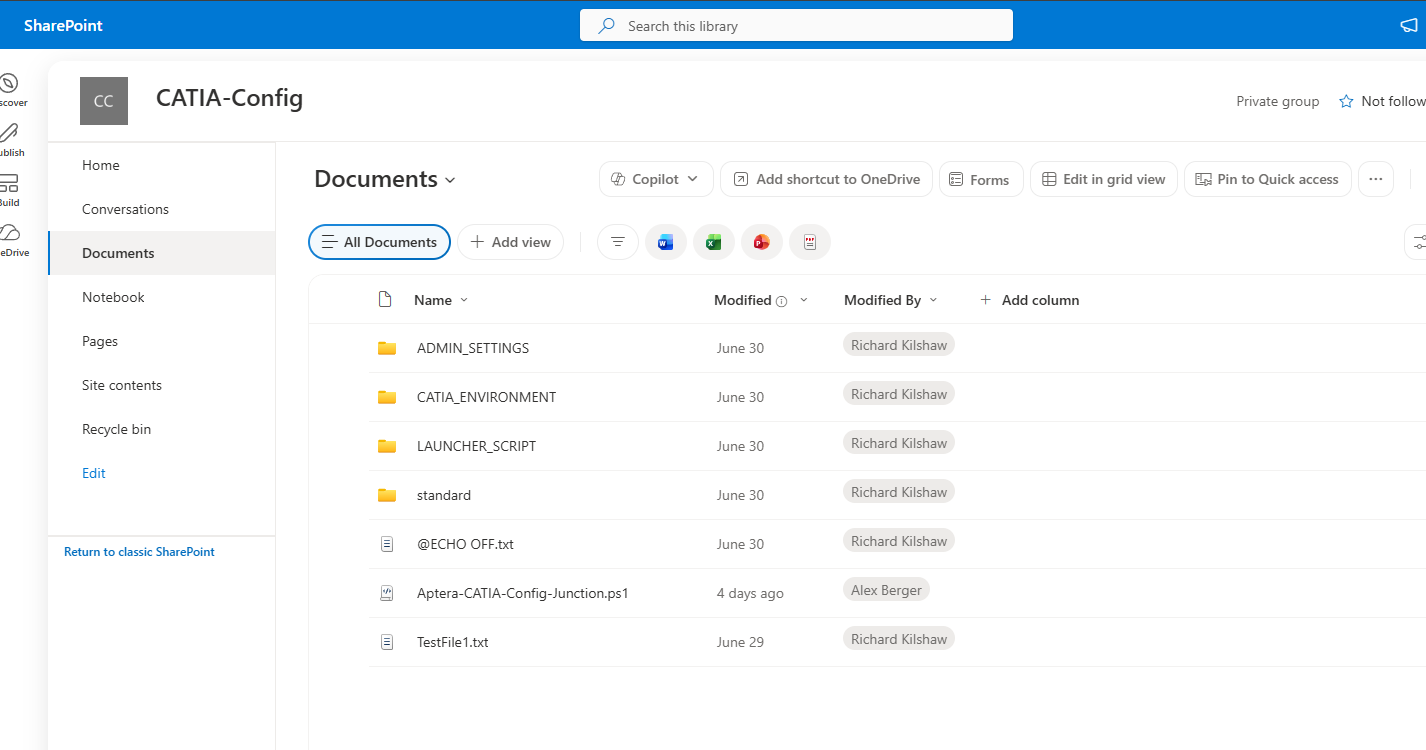
SharePoint CATIA-Config Documents library open in the browser, showing configuration folders

Example: CATIA-Config → Documents library in SharePoint
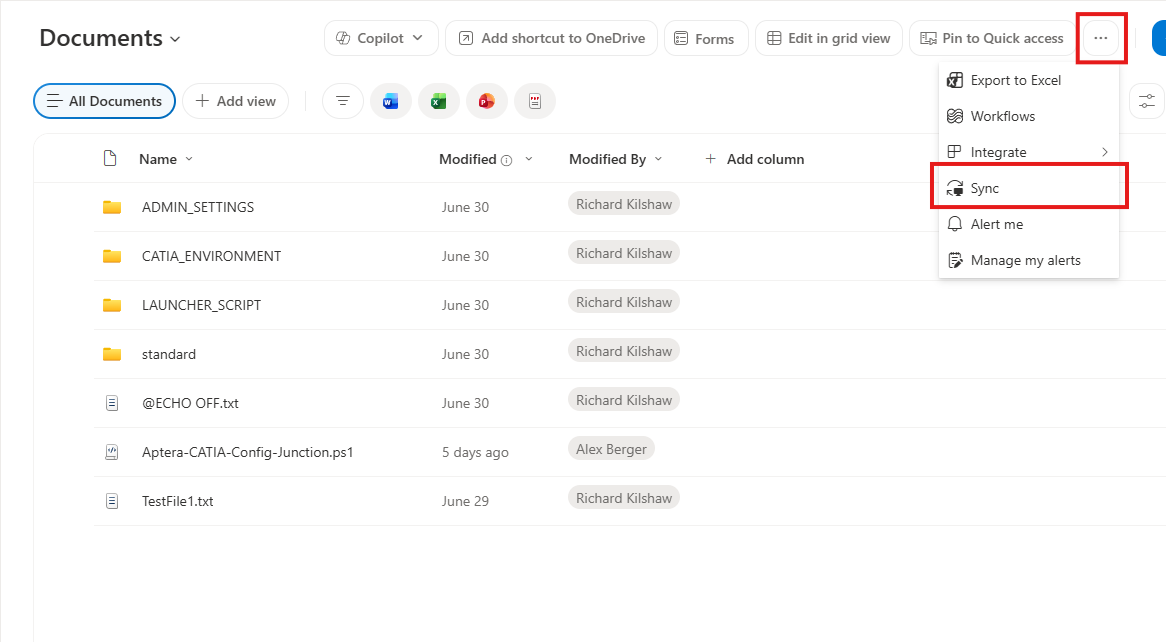
Click Sync (under the ⋯ menu)

In the SharePoint toolbar, click the (three dots) near Pin to Quick access, then choose Sync.

SharePoint toolbar overflow menu open with Sync highlighted

Click ⋯, then Sync (highlighted in the example above)

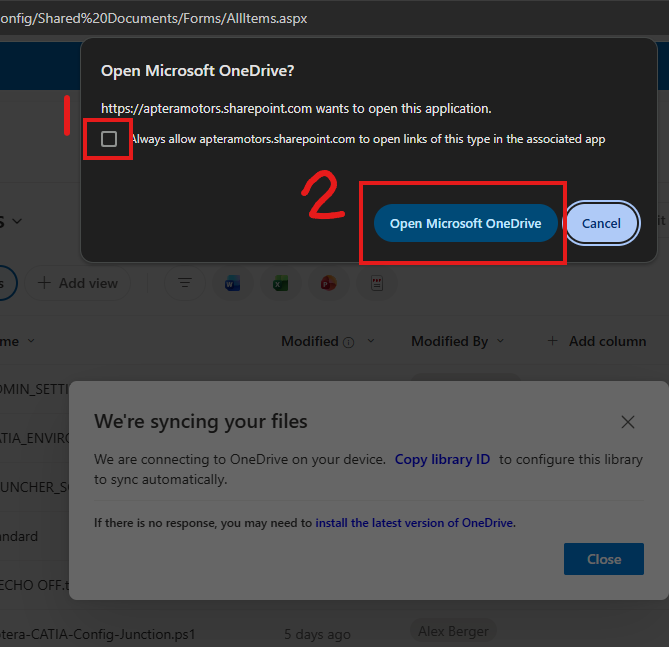
Allow OneDrive to open

Your browser may ask to open Microsoft OneDrive. (1) Check Always allow apteramotors.sharepoint.com…, then (2) click Open Microsoft OneDrive. You may also see a short “We’re syncing your files” message — that’s expected.

Browser dialog Open Microsoft OneDrive with Always allow checkbox and Open button numbered

Check Always allow, then Open Microsoft OneDrive

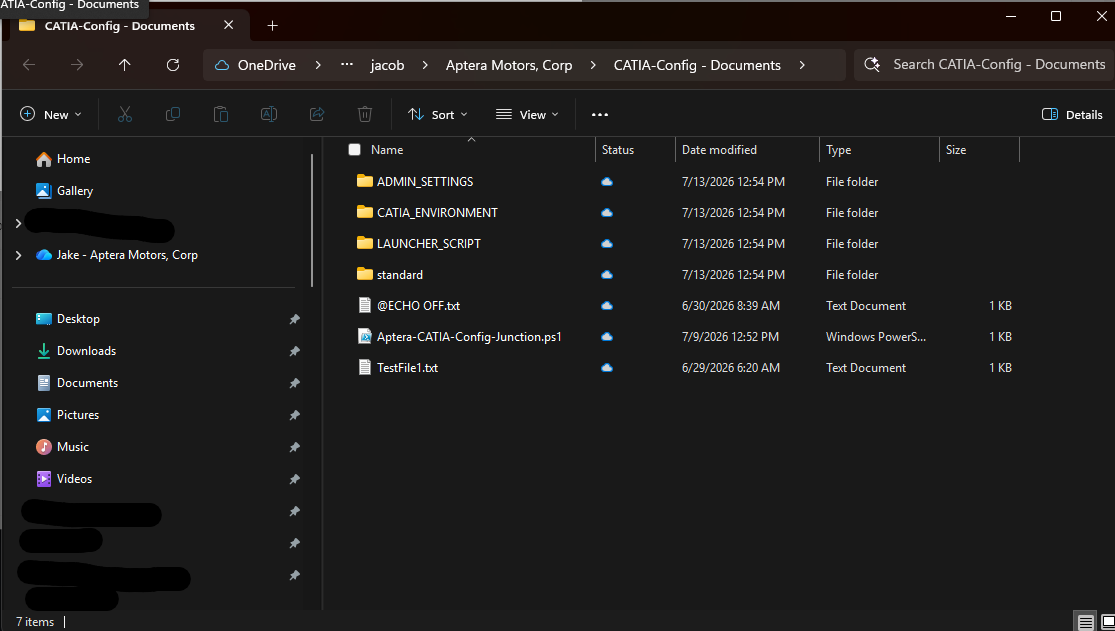
Confirm the folder appears in File Explorer

Open File Explorer. Under your Aptera organization OneDrive section, look for CATIA-Config - Documents. You may need to scroll down in the left navigation. Status may briefly show that it’s syncing.

File Explorer showing CATIA-Config - Documents under Aptera OneDrive

Look for CATIA-Config - Documents in File Explorer

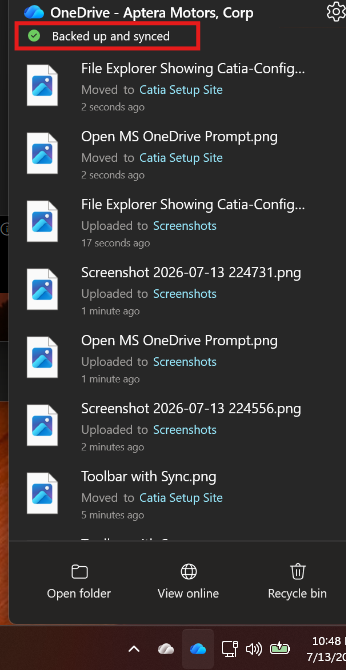
Wait until OneDrive finishes syncing

Click the blue OneDrive cloud icon in the Windows system tray (lower-right; click ^ if hidden). When the status shows you’re fully up to date (for example Your files are synced / Backed up and synced), you’re done with the manual part.

OneDrive activity window showing files synced status

OneDrive tray window — wait until sync is complete

What happens next

Stay signed in for a few minutes. An Aptera setup task on your PC will usually finish on its own. When it works, you should see both of these:

If those aren’t there yet after OneDrive is fully synced, restart your computer once and sign back in. The setup task runs at logon and will complete the link and shortcut.

Important · launching CATIA

From now on, start CATIA only with the new 3DEXPERIENCE desktop icon. That launcher is what loads Aptera’s configuration. Don’t go back to the old shortcut once the new one appears.

Need help?

If SharePoint won’t open, Sync is missing, OneDrive never finishes, or the C: link / desktop icon still don’t appear after a restart, contact Jacob or your IT help desk and mention CATIA-Config setup.

On a second computer (for example a docking laptop and a portable), you need this same one-time Sync on that PC as well.